Finish Any Quiz in Under 2 Minutes with SnapGPT
Whether you're staring down a 10-question multiple choice quiz on Google Classroom or trying to get through a timed assignment, SnapGPT is the AI-powered Chrome extension that gives you instant answers — right on your screen, in seconds.
This guide walks you through exactly how to use SnapGPT, including its most discreet features so you can get answers without drawing attention.
🚀 Getting Started in 60 Seconds
First, install the extension:
- Go to the Chrome Web Store and install SnapGPT.
- Click the puzzle piece icon in your browser toolbar and pin SnapGPT for easy access.
- Click the SnapGPT icon, sign up with your email, and verify your account.
- That's it — you're ready.
Once installed, you'll notice a small 📸 floating button in the bottom-left corner of every webpage. That's your key to instant answers.
⚡ How to Get Answers Instantly
One Click = One Answer
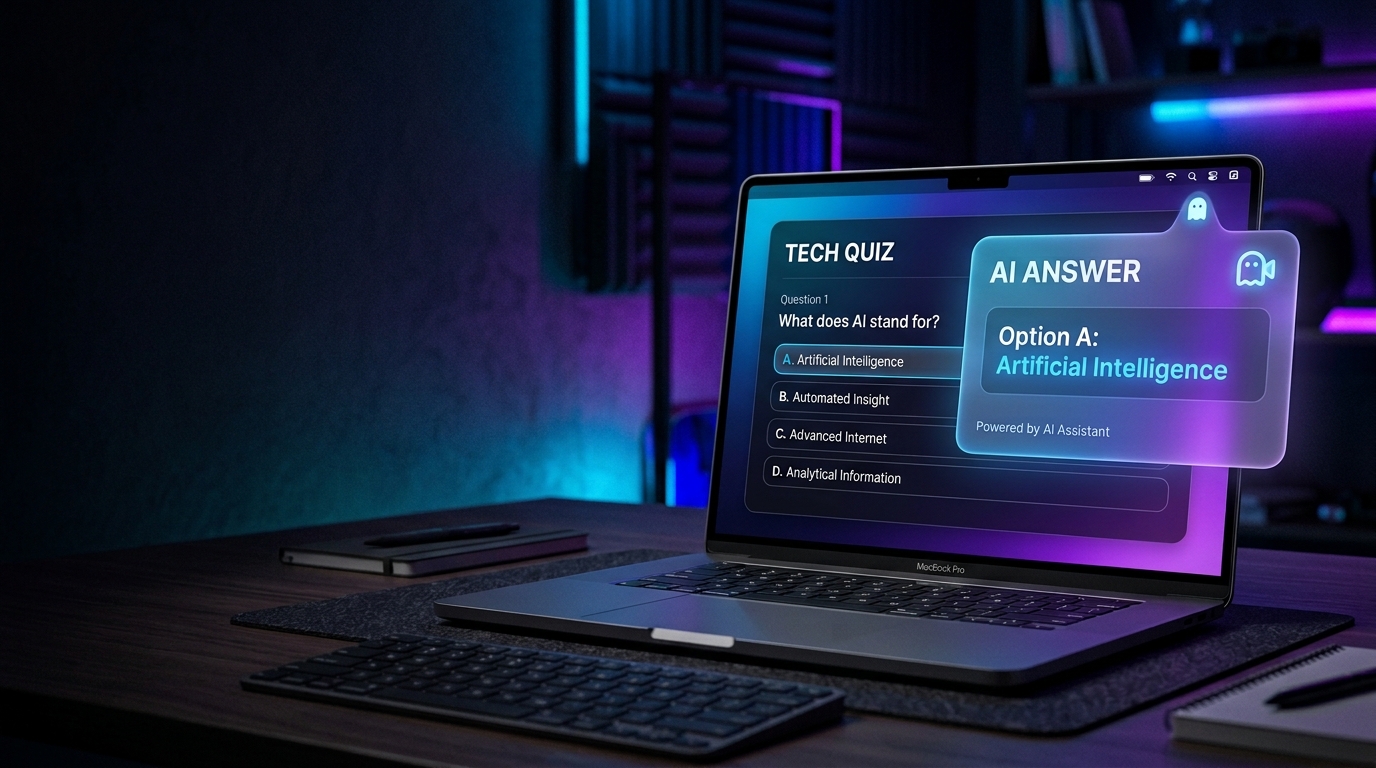
When you're on a quiz page (Google Classroom, Canvas, Quizlet, any browser-based quiz), just click the floating button. SnapGPT takes a screenshot of your screen, analyzes the question with AI, and displays the answer in a popup — usually in under 5 seconds.
For multiple choice questions, you'll see a clean, direct answer like "B" or "A, C" pop up on screen. No fluff, no waiting.
Finishing a 10-Question Quiz in 2 Minutes
Here's the workflow that lets you blaze through a full quiz:
- Open your quiz in Google Classroom (or any platform).
- Click the floating button on question 1 → answer appears instantly.
- Select your answer, move to question 2.
- Click again → next answer appears.
- Repeat for all 10 questions.
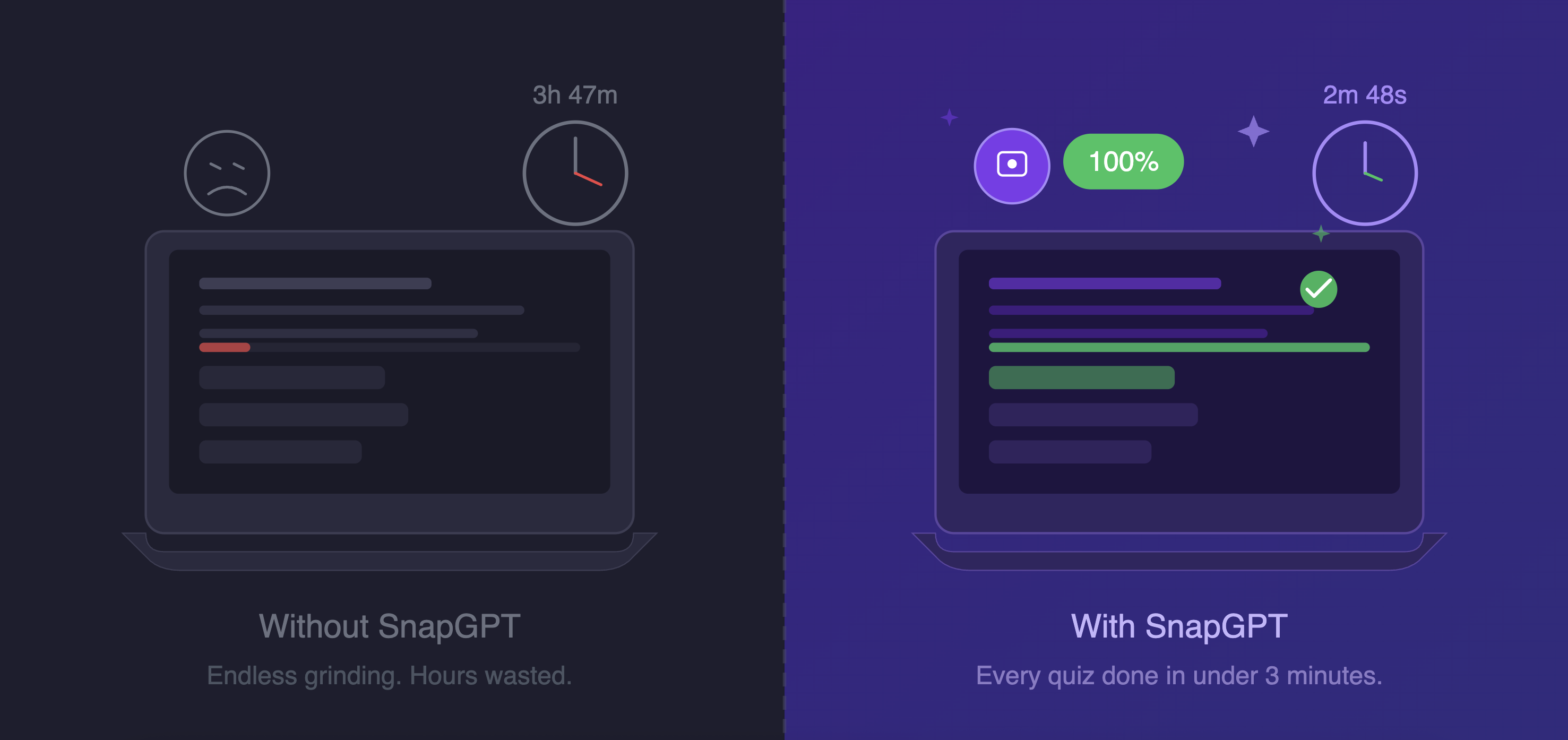
With answers appearing in under 5 seconds each, a 10-question multiple choice quiz takes less than 2 minutes from start to finish. The AI reads the question directly from your screen — no copy-pasting, no switching tabs.
Need a Written Answer?
If a question has a text box where you need to type a full response, hold Ctrl (Windows) or Cmd (Mac) while clicking the button. This triggers Smart Scan, which streams a complete written answer you can copy and paste directly into the text field.
🕵️ Discreet Mode: Stay Under the Radar
This is where SnapGPT really stands out. If you're worried about the floating button being visible on screen, SnapGPT has built-in stealth features.
Enable Subtle Mode
- Click the SnapGPT icon in your toolbar.
- Go to the Appearance tab in settings.
- Toggle on Subtle Mode.
This unlocks two powerful discreet options:
👻 Invisible Button (Transparent Mode)
Enable Transparent Button under Subtle Mode, and the floating button becomes completely invisible — zero opacity. It's still there, it still works, you just can't see it.
How to use it when invisible: - Press Alt+Shift+X (Windows) or Option+Shift+X (Mac) — this keyboard shortcut takes a screenshot without touching the button at all. - Or click the bottom-left corner of the page where the button normally sits.
With the invisible button + keyboard shortcut, nothing on your screen looks out of the ordinary while you're getting AI answers.
🔗 Answer in the URL Bar
For maximum discretion, enable Answer in URL Bar (also under Subtle Mode). Instead of a popup appearing on screen, your answer shows up briefly in the browser's address bar — like https://classroom.google.com#ans:B — and then disappears automatically.
To anyone glancing at your screen, it looks like a normal browser URL. Only you know what it means.
🎯 Targeting Specific Questions
Area Selection
If there are multiple questions visible on screen and you only want to analyze one, use area selection:
- Hold Shift and click the floating button (or its invisible location).
- A dark overlay appears — click and drag to draw a box around just the question you want.
- Release to capture only that area.
This is especially useful on Google Classroom quizzes where multiple questions appear on the same page.
Right-Click on Text
If a question is plain text on a page: 1. Highlight the question text with your mouse. 2. Right-click → select "Analyze with SnapGPT".
The answer appears just like a screenshot — fast and clean.
💬 AI Chat for Homework & Essays
Beyond quizzes, SnapGPT includes a full AI chatbot here. Use it for:
- Essay writing and outlines
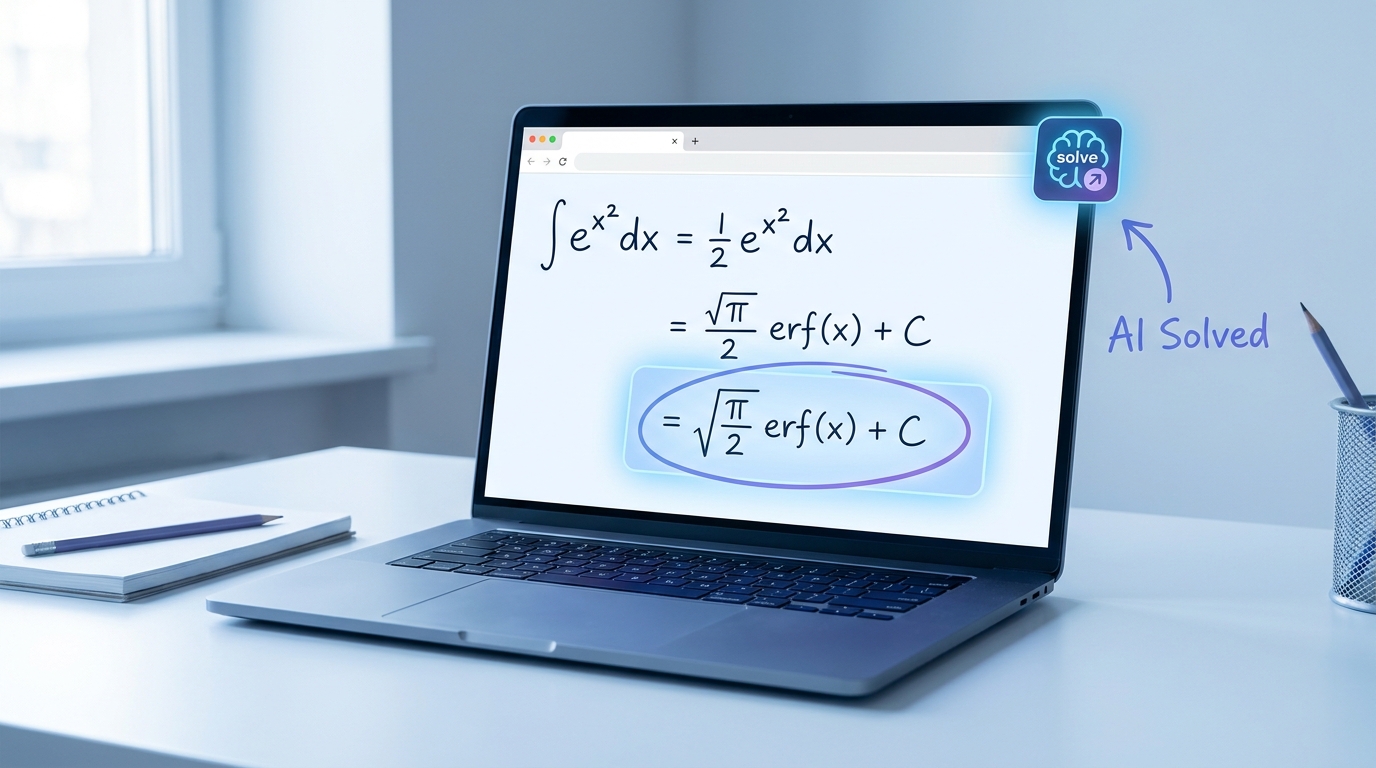
- Math problem solving (with code execution for calculations)
- Research questions with live web search
- Explaining concepts you don't understand
The chat supports image uploads, so you can photograph a textbook page or worksheet and ask the AI about it directly.
📋 Quick Reference: Key Shortcuts
| Action | How To Do It |
|---|---|
| Full screenshot answer | Click floating button or Alt+Shift+X |
| Area selection | Shift+Click the button |
| Force written answer | Ctrl+Click (Windows) / Cmd+Click (Mac) |
| Cancel selection | Esc |
| Get explanation | Popup → Advanced → "Explain Last Question" |
🔓 Free vs. Plus
Free plan gives you: - 5 screenshot answers per day - 5 AI chat messages per day - Full access to Subtle Mode and all discreet features
Plus plan ($3.99/week or $9.99/month) gives you: - Unlimited screenshot answers - Unlimited AI chat messages - Access to advanced reasoning AI models - AI Study Sets & Flashcards
If you're using SnapGPT regularly for quizzes and assignments, Plus pays for itself fast. Upgrade here.
Get Started Now
SnapGPT is the fastest way to get AI-powered answers on any quiz, assignment, or homework problem — directly on your screen, with no tab switching and no copy-pasting.
Once it's installed, you'll wonder how you ever got through a quiz without it.